Description
This software upgrade includes a new battery firmware update, new features, a new SICK configuration file, general MiR Fleet improvements, and solved issues.
Upgrade from 2.x to 3.x
If you have not upgraded from software 2.x to 3.x yet, MiR still provides help with your transition.
To help you seamlessly transition to MiR software 3.x and make the most of its benefits, we offer Upgrade Support Service. This service is designed to minimize site downtime and reduce the risk of unforeseen issues during the upgrade process. You will get assistance from our team of application engineers who have in-depth knowledge of the migration process. MiR Upgrade Support Service consists of two steps: Step 1 is a site assessment and recommendations from MiR, and Step 2 is optional on-site support from MiR.
Until June 28, 2024, we offer you Step 1 of the Upgrade Support Service for free when you buy and add new robots to your MiR Fleet. This can help you decide the strategy of migration from software 2.x to 3.x. Contact your MiR representative for more information.
For more information on how to upgrade and migrate to software 3.x, see MiR Migration Guide 2.x to 3.x.
1.2.6 battery firmware update
This software includes the 1.2.6 battery firmware update for the 48V battery. The update includes the following changes:
- Diagnostics flag for cell imbalance: A diagnostics flag has been added to detect any cell imbalance in the battery. In case of a detected cell imbalance, the battery will prompt for manual intervention, ensuring you are alerted to any potential safety hazards.
- Charge over current counters: The charge over current counters sometimes incremented twice even though only one event occurred. This is solved, ensuring the battery accurately tracks and reports overcurrent events.
- Unintentional battery waking up: The battery would sometimes activate unintentionally due to a falsely detected charger. This is solved, ensuring the battery only wakes up when intended.
- Second temperature sensor: The second temperature sensor would fail in various operations checks. This is solved, ensuring the temperature of the battery is accurately monitored for safety and reliability.
When updating, follow the procedure described in Battery updating procedure (below). There is a risk of the batteries shutting down if the update is not applied correctly. If this occurs, use the Battery Service Tool to help recover the battery. You can find more information on this tool on MiR Support Portal.
For more information about the improvements in the firmware, see MiR 48V Battery Technical Guide. You can find this guide on MiR Support Portal.
The battery firmware update is applicable to the following robots:
- MiR500 and MiR1000 hardware version 1.0–1.1 robots that you have installed a replacement battery in—see the guide How to install the replacement battery on MiR500 and MiR1000.
- MiR500 and MiR1000 hardware version 2.0 robots.
- All MiR250, MiR600, and MiR1350 robots.
Battery updating procedure
After installing the MiR software, the 1.2.6 firmware for the 48V batteries will automatically be applied next time the robot is docked to MiR Charge 48V. You can check the current firmware version of the battery in the robot interface under Monitoring > Hardware health > Power system > Battery Management System (BMS) > Firmware version.
If the battery in your robot has one of the following firmware versions, it will automatically be updated to 1.2.6:
If your robot has a different battery firmware version, contact MiR Technical Support.
When the battery firmware is updating:
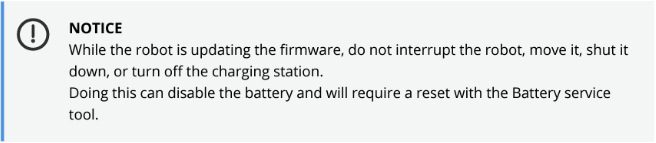
- Make sure the robot stays connected to the charger during the battery update process. Otherwise you risk the battery shutting down permanently to an unrecoverable state. The robot will not begin executing any missions it is assigned (by you or MiR Fleet) until it has finished updating the firmware.
- Wait for the update process to finish. A message is shown in the robot interface indicating the progress of the update. You can check if the 1.2.6 battery firmware version has been applied under Monitoring > Hardware health > Power system > Battery Management System. Updating the battery takes about 2-5 minutes.
- Once the robot has finished updating, you can drive the robot from the charging station.
If the robot turns off when removed from the charging station or some other unforeseen event causes an interruption in the updating process, the firmware update did not succeed. On MiR250, MiR500 and MiR1000 the battery can still finish updating by connecting a MiR Cable Charger Lite 48V 3A to the robot. When doing this, make sure to leave the charger connected to the robot long enough for the battery firmware to finish updating.
On MiR600 and MiR1350, the battery must be removed from the robot and updated using another robot, or the Battery service tool.
New features
New localization feature (MIRS-15639)
You can now enable the new Localization feature, via the feature flag under Features > Advanced which aims at improving the localization performance when driving in dynamic areas such as warehouses.
This feature increases the trust of the robots' internal odometry data based on the robot encoders and IMU sensors and attempts to sample the laser scanner data used for localization more in relation to the mapped objects.
By default, a robot's localization on a map relies upon a number of distributed data points from the laser scanner readings, which are then cross-referenced against the map. This means that the input for localization can be affected by dynamic obstacles detected by the scanners. With the introduction of this feature, the robot tries to discard sensor readings on dynamic objects. This approach reduces noise in the localization algorithm. The feature also increases the trust in the odometry estimates when evaluating the robot's location on a map.
Please note that the feature is currently experimental. We recommend verifying the performance before implementing the feature in production. You need to restart the robot after turning the feature on or off. For additional questions, contact MiR Technical Support.
All pending missions can be deleted from the Mission scheduler in MiR Fleet (MIRS-9721)
You can now delete all pending missions at once by using the Delete all button in the Mission scheduler in MiR Fleet. This means that all pending missions that are not currently Executing, Done, or Aborted can be deleted from the list of scheduled missions.
Robots inform if they are waiting for a resource in MiR Fleet to complete a Relative move or a docking action (MIRS-14679)
When a robot has to wait for a resource to dock to a marker or to complete a Relative move, it is now written in the mission status message which position the robot is driving to and if the robot is waiting for a resource to be available in MiR Fleet. If the robot is waiting for a resource, you can see exactly which resource under Monitoring > System log.
The progress of an error log being created is now visible in the interface (NEX-1025)
When you create an error log in the interface under Generate log under Monitoring > Error logs, you can now see the progress of the creation in a notification at the bottom of the screen.
New API endpoint /clear_site_data can delete all site data from a robot (MIRS-15211)
A new endpoint called /clear_site_data has been added to the robot API. You can use this endpoint if you wish to delete all site data from a robot.
Robot tracker feature in MiR Fleet (MIRS-15623)
A new robot tracker under Features > Advanced makes the tracking of other robots more reliable and eliminates fluctuating data such as a Collision avoidance cloud flickering on the map. The tracker is enabled by default. Relative moves could fail on robots connected to MiR Fleet due to incorrectly handled data from Collision avoidance. This data has now been improved, which means that the robot will be more likely to succeed with a Relative move when in proximity of other robots connected to MiR Fleet.
View executing actions in mission editor (MIRS-15150)
You can now see what actions are currently executing in the mission editor, indicated by a loading three-dots icon. This makes it easier to follow the execution of the mission and solve issues that may be in the set-up of the mission. Note that this feature does not work on nested missions.
MiR Fleet improvements
Optimized resource assignment in MiR Fleet (NEX-3829 and NEX-3830)
Several optimizations of MiR Fleet's resource assignment logic have made assignment of resources faster and will result in improved QoS (Quality of Service) statistics.
New SICK configuration file for MiR600 and MiR1350
This software includes a new SICK configuration file for MiR600 and MiR1350 hardware 2.0 that reduces their footprint and makes them more agile. The SICK configuration file is not backwards compatible for older hardware versions. To download and apply a new SICK configuration file, see How to apply the default SICK configuration on MiR250, MiR500, MiR600, MiR1000, and MiR1350. You can find this guide on MiR Support Portal.
Issues solved
User name and password was needed when creating Wi-Fi certificate (MIRS-11576)
When you created a new Wi-Fi connection in the robot interface under System > Settings > Wi-Fi, chose WPA2 / TLS - enterprise, added a certificate, and attempted to connect, you would be prompted to provide a user name and password, even though this was not needed.
Mapping could create unnecessary core dumps and error logs (MIRS-14083)
Sometimes, when the robot was mapping, the robot would generate a number of unnecessary error logs every time you started mapping.
Notification missing when creating a footprint (NEX-1156)
When you created a footprint in the robot or MiR Fleet interface, you did not get a notification saying that the creation of the footprint was either successful or failed.
Deleted missions from the Mission scheduler could not be removed (MIRS-15070)
If you created a mission in MiR Fleet, scheduled it, then deleted it and restarted MiR Fleet, the mission could not be removed from the Mission scheduler.
Entry position rotation changed when it was not supposed to (NEX-1469)
Sometimes, when you created a marker on a map, modified the rotation of that marker's Entry position, and then appended the map, the Entry position rotation changed in relation to the marker. This could lead to issues when docking to the marker.
API call in MiR Fleet returned the wrong JSON format (MIRS-14460 and MIRS-15762)
When you performed the MiR Fleet API call GET /robots, the format returned was in JSON Array and not JSON as stated in the API documentation. We updated the API documentation to reflect that we return JSON Array. Furthermore, the /robots endpoint now returns only URL and ID.
Progress of generating an error log was not visible in the sidebar (MIRS-15022)
When you generated an error log under Monitoring > Error logs, selected View next to the error log and the sidebar opened, you could not see whether or not the error log was being generated in the sidebar.
MiR100 footprint could not be saved (MIRS-15025)
If a footprint for MiR100 was edited, and it was a small size, the footprint could either not be saved or it would appear to have been saved, but was not.
Paths page was still visible in software 3.x (NEX-4355)
When migrating from software version 2.14.7 to software version 3.3.x or 3.4.x, the Paths page was still visible in the interface even though it no longer saved paths and would remain blank. The page has now been removed, as Paths are only used in software 2.x.
Robot appeared to wiggle while undocking (MIRS-15663)
Sometimes, if the robot had to dock through two pallet racks placed one after another, the robot got stuck at the second pallet rack. If you scheduled a Relative move with Collision detection disabled to get the robot out, the robot appeared to wiggle its way out while undocking.
Proximity boards entered error state after software upgrade (MIRS-15661)
When you upgraded the robot software and restarted the robot, sometimes the proximity boards went into error state. This meant the connected indicator lights would not work.
Localization was incorrect after mapping (MIRS-15658)
If you recorded a new map on the robot's active map and overwrote the active map, the robot's localization would be incorrect.
Robot failed to go to Shelf position when using position variable in a mission (MIRS-15651)
When you created a mission with a Move to action on a robot running software version 3.3.3, set the position of the action as a variable, set the default position of the variable to any Robot position, and then queued the mission on the robot with a Shelf position selected, the robot failed to reach the Shelf position.
Robots with extensive uptime could become unresponsive (MIRS-15650)
Due to an internal clean-up routine, system operational data could be removed, resulting in the robot becoming unresponsive.
The obstacle clouds added from Collision avoidance would still be visible in interface after disconnection from MiR Fleet (MIRS-15640)
If a robot was connected to MiR Fleet, Collision avoidance was enabled, another robot was close by, and the robot was then disconnected from MiR Fleet, the obstacle clouds added from Collision avoidance would still be visible on the robot's interface map.
Invalid mission actions in Wait for input were not marked as invalid (NEX-4221)
If you created a mission, added a Wait for input action, edited this action by disabling Forever under Timeout, updated the mission action, saved the mission, and opened the mission in the mission editor, the invalid mission actions would not be marked as invalid.
Error logs would log failed query objects (NEX-4121)
If a robot was sent to a few different positions, the error log would have several entries where failed query objects were logged for no reason.
Deprecated Precision docking features were still shown in the interface (MIRS-15624 and NEX-3599)
Software 3.x does not support Precision docking. The Precision docking features were still available under System > Settings > Features. If you enabled them, deprecated precision docking markers and the precision docking permission were displayed in the interface without supporting text.
Could not create Wi-Fi connections for networks that used a password of 64 hexidecimal digits (NEX-3928)
If you tried to add a Wi-Fi connection on a robot and entered 64 hexadecimal digits into the password field, the user interface would report an error, because it only allowed a password consisting of 8-63 ASCII characters.
Editing Wi-Fi profile with password that was too short would fail (MIRS-15545)
Sometimes, if you were editing a Wi-Fi profile in the robot interface under System > Settings > Wi-Fi and the password for the profile was too short, the profile could not be edited and saved.
Generating error logs would not finish (MIRS-15596)
Sometimes, when you attempted to either generate, download or delete an error log in the robot interface, the error log would not succeed.
Internal I/O heading under Hardware health split into subheadings (NEX-3460)
Under Monitoring > Hardware health, the headline Internal I/O would sometimes be split into different subheadings when an update was triggered.
Endpoint failed if not used correctly (MIRS-15370)
The endpoint qualified_robots used for determining qualified robots for a mission in MiR Fleet could fail if not used correctly. We have enhanced the security of our system by improving the handling of input data for that endpoint.
All maps disappeared when a .png file under Maps was uploaded (MIRS-15284)
Sometimes, if you created a new map in the robot interface, then uploaded a .png file under Maps, the map would turn gray and it would cause all maps to disappear and reappear at a later stage.
Robots on software 3.2.0 or 3.2.1 were unable to create Wi-Fi profiles (MIRS-15227)
For robots running software 3.2.0 or 3.2.1, with existing Wi-Fi connections, and with Connect all enabled under System > Settings >Wi-Fi, when you tried to add a new Wi-Fi connection, the robot kept searching for networks without creating a new connection.
Map filters saved after page re-load (MIRS-15017 and MIRS-15109)
Before, when you were editing a map and you had map filters selected, and you then deselected these filters, they would reset while editing the map. This has now been fixed, so that map filters will not reset while editing the map.
Robots re-requesting resources lead to unassigned robots when a Relative move or Docking move was performed (MIRS-15673)
Robots running software version 3.3.x and connected to MiR Fleet were mistakenly unassigned from a resource in two cases:
- When a robot moved to a position, got a resource assigned, and did a Relative move which was longer than the Resource assignment distance.
- When the robot did a Dock action to a marker where the distance between the Entry position and the Docking offset was longer than the Resource assignment distance.
Now, the robot moves to the position or Entry position, is assigned the resource, and performs the move without losing the resource.
Too small MiR250 footprints could be saved (NEX-1904)
If you created or edited a MiR250 footprint in Simple mode, you were able to drag and save a size that was smaller than what was intended to be allowed.
Robot would fail to detect a marker (MIRS-15763)
During the initial marker detection process, there was a low risk of the robot entering an error state when trying to detect a marker. This error state can no longer occur.
Synchronization issues in MiR Fleet when adding large numbers of markers (MIRS-15485)
If you added a large number of markers and then deleted them in MiR Fleet, there were issues with the synchronization between MiR Fleet and the robots. After a restart of MiR Fleet, the robots would still be synchronizing for a long time.
|
Comments
0 comments
Article is closed for comments.